Keyboard Entry
Keyboard entry may be used with many editing commands, including adding and moving polygons and points and moving Components. When an object is selected, the keyboard entry controls appear in the status bar of the Project Editor, as shown below:

To use keyboard entry, first execute your command, such as adding a polygon. Then enter your coordinates in the text boxes and press the Enter key, or click the  button. The three buttons on the left side of the keyboard entry controls are defined as follows:
 Relative: When the Relative button is pressed, coordinates are entered as relative coordinates. When moving objects, coordinates are relative to the selected object. When adding a polygon, coordinates are relative to the last point entered. The Relative setting is the default setting.
 Absolute: When the Absolute button is pressed, coordinates are relative to the Local Origin (see Local Origin for details).
 Polar button: The polar button functions as a toggle between Cartesian and polar coordinates. When the button is not pressed (default), the coordinates should be entered as Cartesian coordinates. When the button is pressed, the coordinates may be entered as a radius and an angle.
The Cartesian and polar coordinate systems used by Sonnet are shown below:
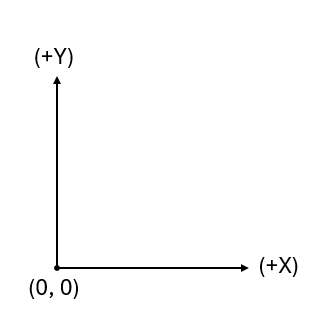
Cartesian
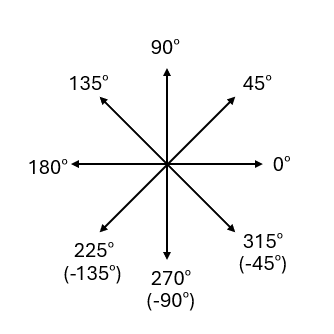
Polar
When using the keyboard to enter coordinates, the results ignore the Ortho settings.
Entering Coordinates Without Using the Mouse
You may also enter your coordinates without using your mouse.
Execute your command, such as adding a polygon.
To prevent using the mouse, you may execute the command using a shortcut key. For example, type P to insert a polygon.
Press the @ key on your keyboard.
Type the x coordinate.
Press the , (comma) key on your keyboard.
Type the y coordinate.
Press the Enter key on your keyboard.