

Release Notes - 12.02 Beta
System Requirements
- Windows XP and Vista (32 bit and 64 bit)
- Red Hat Enterprise Linux 4.4 and above with Motif 2.2.4
- SUSE Linux Enterprise 10.0 and above with Motif 2.2.4
- Linux X86-64 must have 32-bit compatible libraries
- Solaris 5.10 and above (Multi-core CPU parallel processing will not be available on Solaris)
- Adobe Reader 5.0 and above on UNIX and Linux platforms and Adobe Reader 7.0 or higher on Windows platforms is required to access the documentation. Adobe Reader is no longer delivered with your software, please go to www.adobe.com to download the latest version of Adobe Reader.
- For UNIX and Linux, we recommend using Adobe Reader 7.0 since there are problems opening the example files with Adobe Reader 8.0.
Dialog Boxes on Linux using KDE
KDE has a feature, focus stealing prevention, that causes dialog boxes in Sonnet applications to appear behind the main window. This feature needs to be disabled so that the dialog boxes appear in front of the application window. To disable this feature, do the following:
- In the main menu, select Control Center. The Control Center window appears on your display.
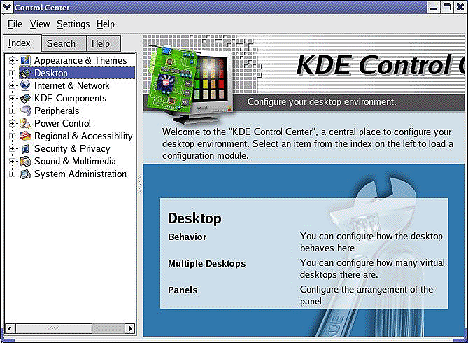
- In the directory tree in the left hand pane, select Desktop.
- In the expanded list, select Window Behavior. The Window Behavior dialog box is displayed in the right-hand pane of the control center window.
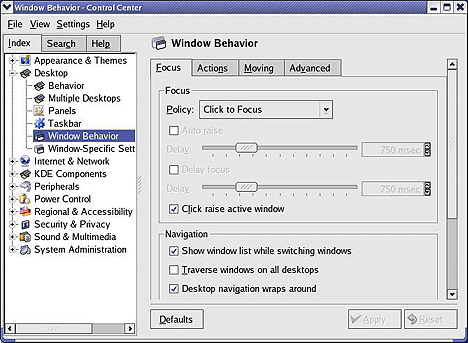
- Click on the Advanced Tab at the top of the Window Behavior dialog box. If necessary, scroll down so that the bottom of the dialog box is visible.
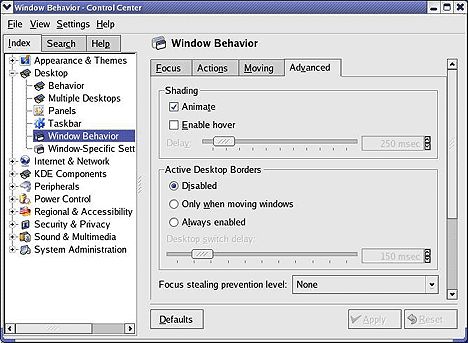
- Select "None" from the Focus Stealing Prevention Level droplist.
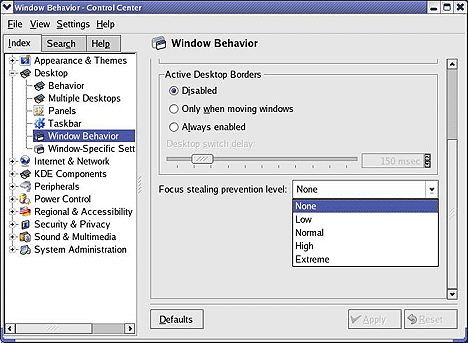
- Click on the Apply button to apply the changes.
Vista Licensing when using SonnetCluster or Remote em
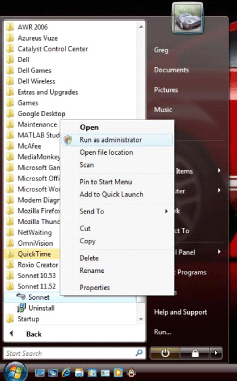
When installing Sonnet on a Vista OS, before running the Admin => License command from the Sonnet task bar to set up your licensing, you must sign in as a system administrator in order for SonnetCluster or remote em to function correctly.
- To open the Sonnet taskbar as an adminstrator, right-click on Sonnet in the Start menu and select Run as administrator from the pop-up menu.
Acrobat Reader on UNIX and Linux Platforms
If you wish to use the Acrobat reader in the Sonnet environment on UNIX and Linux platforms, you must either add Acrobat to your path or set a variable in the Sonnet.ini file. You may also set the variable to point at another PDF reader if you wish.
In order to set up your PDF reader for the Sonnet environment, do the following:
- Edit the Sonnet.ini file, found in <Sonnet Directory/data/sonnet.ini where <Sonnet Directory> is the directory in which Sonnet software was installed.
- Go to the following entry:
;Unix_Acrobat_Reader=/usr/bin/evince - Delete the semi-colon at the beginning of the line.
- Replace "/usr/bin/evince" with the path to your PDF reader. The PDF reader must be the same for all UNIX or Linux platforms.
Gerber Translator
Due to a known bug in the Gerber Translator, pathnames that contain spaces will cause a failure in translation for both single file and multi-file translations. The present workaround is to ensure that both your path and filename for your source and destination files do not have any spaces. This bug should be resolved in the final release 12.
Help buttons in dialog boxes do not work on Linux or Unix systems
Clicking on a help button in any dialog box does not work. Help is not opened and the following error message is displayed: No help available for code: <Number>.
To correct this problem, rename the file <Sonnet Directory>/help/sonnet/mapid.txt to <Sonnet Directory>/help/sonnet/mapid_topic.txt where <Sonnet Directory> is the directory in which the software is installed.


